



Can an SSD Upgrade Make My Old Laptop Feel Faster Again?
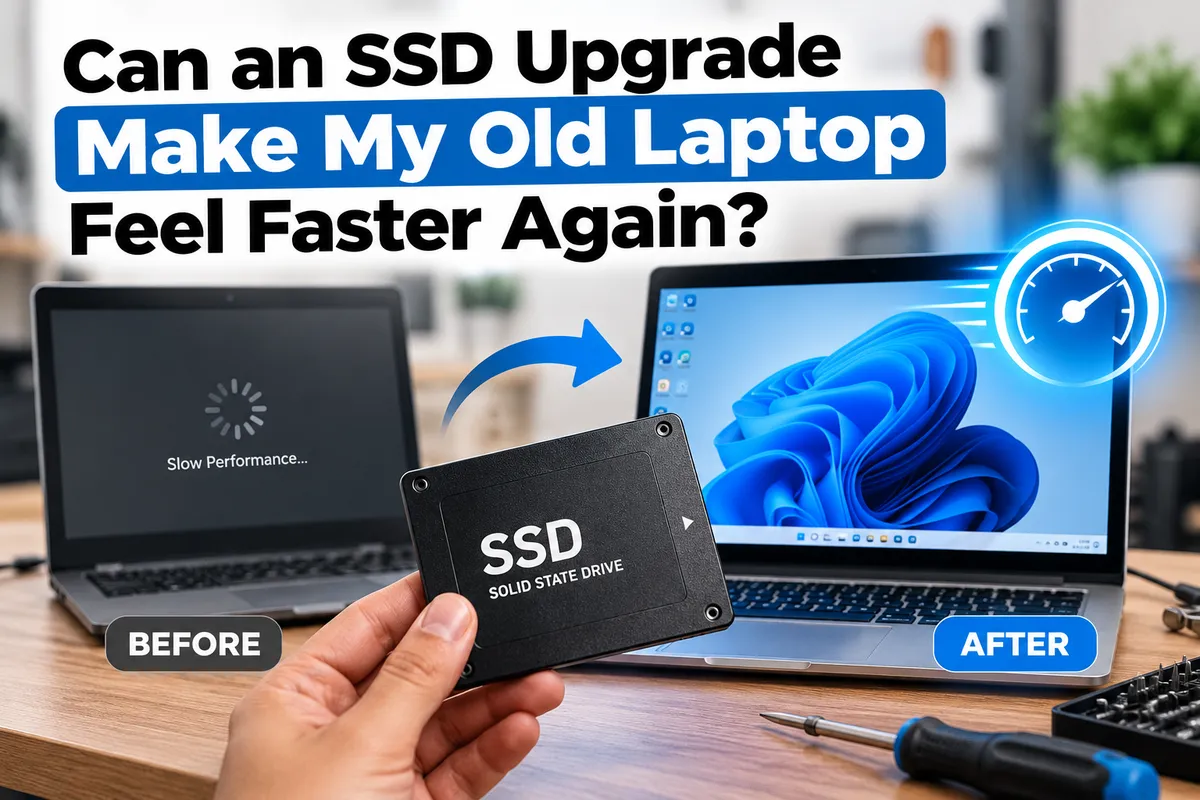
Yes. If an older laptop still uses a traditional hard disk drive, replacing it with a solid-state drive can make the computer feel much faster during everyday use. An SSD can shorten startup times, make programs open more quickly, improve file access, and reduce the pauses that often make an aging laptop feel sluggish.
However, an SSD does not fix every slow computer. Low memory, an aging processor, overheating, malware, software problems, or other hardware faults can still limit performance. For laptop owners in Southgate, MI, Moe-Bile Repair provides computer and laptop repair services for slow performance, hardware problems, diagnostics, data recovery, and other computer issues.
Why Does an SSD Make an Older Laptop Feel Faster?
A traditional hard drive stores data on spinning magnetic platters and uses a mechanical read/write head. When Windows, applications, and background services request many small files, that mechanical process can become a major bottleneck.
A solid-state drive has no moving parts and accesses data through flash memory. The processor does not become faster after the upgrade, but the computer spends far less time waiting for storage. That is why booting, opening applications, searching folders, and installing updates can feel noticeably quicker.
What Improvements Can You Expect?
The biggest improvement usually appears on laptops that still rely on an HDD. Startup may become much faster, programs can launch sooner, and the computer may respond more quickly after you sign in.
File transfers, document loading, browser startup, and software installation can also improve. If the old hard drive is beginning to fail, an SSD replacement may also eliminate freezes or delays caused by repeated read attempts.
What an SSD Upgrade Will Not Fix
An SSD is a strong upgrade, but it is not a cure for every performance problem. A laptop with very little RAM may still slow down when many browser tabs or applications are open. An older processor may still struggle with video editing, modern games, large spreadsheets, or other demanding workloads.
Overheating can also reduce performance when the processor slows itself to control temperature. Malware, damaged system files, excessive startup programs, and operating system problems can make even a laptop with an SSD feel slow. Proper diagnostics help determine whether storage is actually the main bottleneck.
How Do You Know Whether Your Laptop Still Has a Hard Drive?
Many older laptops shipped with mechanical drives, while some later models came with SSDs from the factory. The installed storage type can often be checked through the operating system, manufacturer specifications, or a hardware information utility.
A technician can also identify the drive and determine what upgrade options the laptop supports. If the machine already has a healthy SSD, replacing it with another SSD may increase capacity or transfer speed, but the improvement may not feel as dramatic as moving from an HDD to an SSD.
SATA SSD or NVMe SSD: Compatibility Matters
Older laptops commonly use 2.5-inch SATA drives. Newer systems may support M.2 SATA or faster NVMe storage. These formats are not automatically interchangeable simply because two drives look similar.
The connector, protocol, physical size, available slot, and laptop firmware all matter. For an older computer, a SATA SSD can still provide a major real-world improvement over a mechanical drive. There is little benefit in buying a high-end NVMe SSD if the laptop cannot support it.
Should You Clone the Old Drive or Install Windows Fresh?
An SSD upgrade can usually be completed by cloning the existing drive or installing the operating system fresh. Cloning keeps applications, settings, accounts, and files, which can make the transition easier when the existing system is healthy.
A fresh installation may be more appropriate when the current operating system is heavily cluttered or corrupted. If the old drive is failing, repeated cloning attempts can put additional stress on it, so data preservation should come before experimentation.
Back Up Important Data Before Replacing Storage
Any storage upgrade should begin with a backup when the existing drive is still readable. Photos, documents, work files, browser data, and other important information should not exist in only one place during a drive replacement.
If the old drive is clicking, disappearing from the system, producing read errors, or causing repeated freezes, the priority may need to shift from upgrading the laptop to recovering the data. Moe-Bile Repair lists diagnostic services and data recovery as part of its computer repair offering.
Could More RAM Be a Better Upgrade?
Sometimes an SSD and additional memory work best together, but the right choice depends on the bottleneck. If the laptop uses a mechanical hard drive, an SSD is often the most noticeable general-purpose upgrade. If it already has an SSD but slows down only when several programs are open, insufficient RAM may be the bigger limitation.
Some laptops allow memory upgrades while others have RAM soldered to the motherboard. Checking the exact model before buying parts prevents spending money on hardware the computer cannot use.
When an Old Laptop May Not Be Worth Upgrading
An SSD can extend the useful life of many laptops, but the overall condition of the computer matters. A machine with a healthy screen, usable battery, adequate processor, and enough memory may remain perfectly practical for browsing, schoolwork, office tasks, and streaming after an SSD upgrade.
The calculation changes if the laptop also has a broken screen, failing battery, damaged hinges, charging problems, or severe overheating. When several expensive faults exist at the same time, it makes sense to compare the total repair cost with the value and remaining usefulness of the computer.
How Technicians Diagnose a Slow Laptop Before an SSD Upgrade
A proper performance diagnosis looks at the entire computer rather than assuming the storage drive is responsible for every slowdown. A technician may check drive health, free storage space, memory usage, startup programs, operating system condition, temperatures, malware symptoms, and hardware specifications.
If the hard drive is the bottleneck, the correct SSD type and capacity can then be selected. If another component is responsible, that problem can be addressed before money is spent on an upgrade that would not solve the real issue. A sudden slowdown, in particular, can point to a failing drive, software problem, overheating, or malware rather than normal aging.
SSD Upgrade and Laptop Repair in Southgate, MI
An SSD upgrade can be one of the most effective ways to make an older laptop feel useful again, especially when the computer still runs from a mechanical hard drive. Faster storage can improve startup, application loading, file access, and everyday responsiveness without replacing the entire computer.
The upgrade makes the most sense when the rest of the laptop is in reasonable condition and its processor and memory are still adequate for what you need to do.
Moe-Bile Repair provides computer and laptop repair in Southgate, MI and lists slow-performance troubleshooting, diagnostics, hardware repair, and data recovery among its computer services.
If your laptop feels slow and you are unsure whether an SSD, additional RAM, software repair, or another fix would make the biggest difference, you can visit Moe-Bile Repair's Southgate location or contact Moe-Bile Repair to have the computer evaluated.
The goal is not simply to install a newer drive. A good SSD upgrade should remove the actual storage bottleneck, protect your data, and make sure the rest of the laptop is healthy enough to benefit from the improvement.
