



I Keep Getting Virus Warnings. Is My Computer Actually Infected?
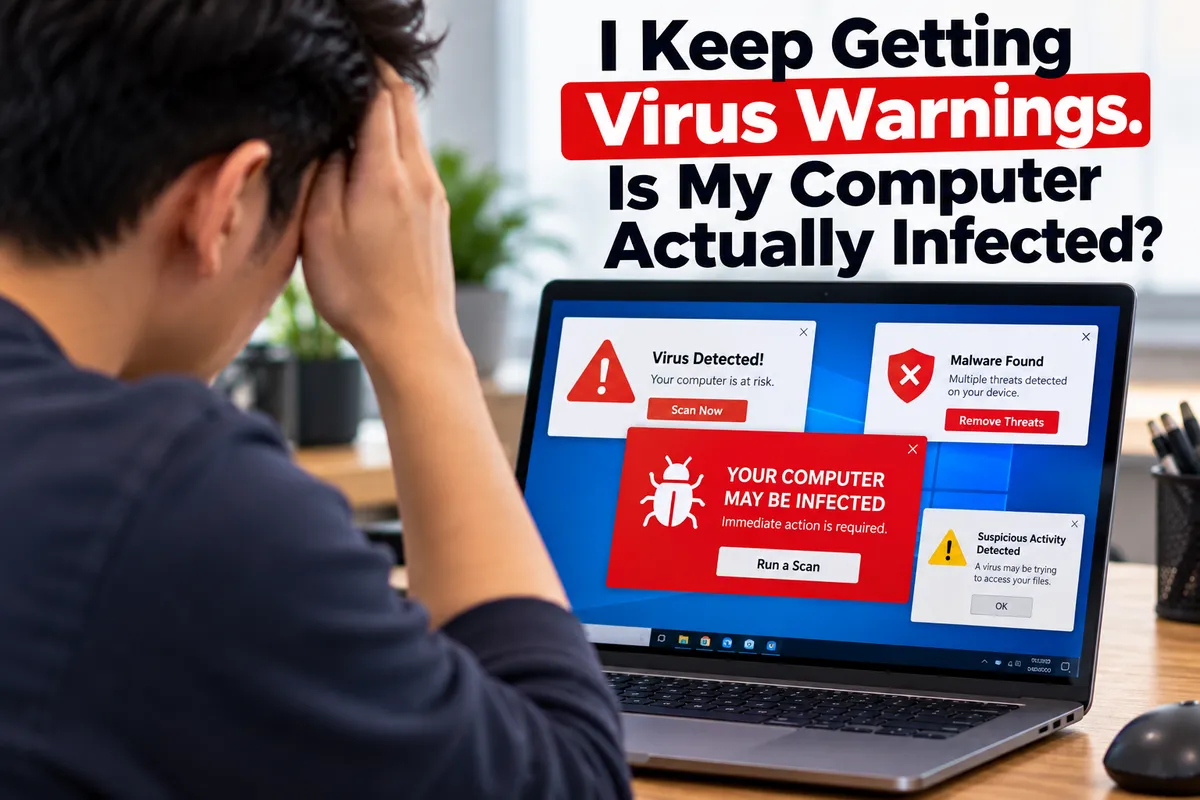
If your computer keeps showing virus warnings, it may be infected, but not every alert means malware is actually installed. Some warnings come from legitimate security software, while others are browser notifications, fake pop-ups, or scareware designed to make you click a link, call a number, or install unnecessary software.
Avoid interacting with the warning until you know where it came from. Do not call phone numbers shown in pop-ups or install software simply because a message says the computer is infected.
For computer users in Southgate, MI, repeated warnings deserve more attention when they appear with slow performance, browser redirects, unknown programs, disabled security tools, or unusual account activity. Moe-Bile Repair provides computer and laptop diagnostics for virus, malware, software, and performance problems when the cause is unclear.
Are Virus Warnings Always Proof of an Infection?
No. A virus warning only proves that something is displaying an alert. The source of the message matters.
A notification from security software you installed is different from a browser page claiming it found several viruses in seconds. A website normally cannot perform a complete malware scan simply because you opened the page. Countdown timers, loud sounds, urgent language, or instructions to call support are warning signs.
Fake warnings can also appear because a user previously allowed a suspicious website to send browser notifications. Adware or an unwanted extension can create similar behavior. That does not automatically mean the entire computer is infected, but it does mean the source should be identified and removed.
How Can You Tell a Fake Virus Pop-Up From a Real Security Alert?
Start by checking which program produced the warning. A legitimate alert should normally come from the operating system or security software already installed on the computer. You should be able to open that security program separately and review its status without using the buttons inside the pop-up.
Suspicious warnings may display a phone number, imitate a major company, claim your files will be deleted immediately, or insist that you download a specific cleaner. Scam pages can copy logos, icons, colors, and system-style wording, so appearance alone is not proof of legitimacy.
Why Do Virus Warnings Keep Appearing in My Browser?
Repeated browser warnings are often caused by notification permissions rather than a traditional virus. A website may have been allowed to send notifications and can continue showing alarming messages even after you leave the site.
Browser extensions can also create unwanted redirects, advertisements, or new tabs. In more serious cases, adware installed on the computer may change search settings or browser startup behavior.
If the warnings appear mainly in one browser, checking notification permissions and extensions can help. If the same problem appears across multiple browsers or alongside other system issues, broader malware diagnostics may be appropriate.
What Are Stronger Signs That the Computer May Be Infected?
No single symptom proves that malware is present, because legitimate software and hardware problems can sometimes cause similar behavior. Concern increases when several unusual symptoms appear together.
Programs opening without your input, repeated redirects, disabled security software, unknown applications, persistent ads outside normal web pages, or unusually high processor and network activity can justify a closer look.
Unexpected password-reset messages or account logins can also signal a security problem, although those events may involve an online account rather than malware on the computer itself. That distinction matters because removing malware will not secure an account whose password has already been exposed.
What Should You Do When a Suspicious Warning Appears?
Avoid the buttons, download links, and phone numbers inside the warning. If the alert is inside a browser tab, try closing the tab or browser normally. If it will not close, use the operating system's normal method for ending an unresponsive application rather than clicking prompts offered by the suspicious page.
Next, open the security software already installed on the computer from the Start menu, Applications folder, or system settings and check its status directly. Running a legitimate built-in or trusted security scan can help determine whether an actual threat is detected.
If you recently installed an unfamiliar program before the warnings started, note its name and when it was installed. Avoid randomly deleting system files or registry entries based on instructions from an unknown website.
When Should You Disconnect the Computer From the Internet?
A simple browser pop-up does not always require disconnecting the computer. However, disconnecting Wi-Fi or Ethernet is a reasonable precaution if you see evidence of active remote control, files being changed rapidly, unauthorized software downloading, or suspicious account activity occurring in real time.
If an unsolicited technical-support caller or pop-up has already gained remote access, disconnect the network connection and end the remote session if you can do so safely.
Can Malware Make a Computer Slow?
Yes. Some malware and adware can consume processor time, memory, storage, or network bandwidth. That can make a computer feel slow, increase fan activity, shorten laptop battery life, or cause browsers to behave unpredictably.
But slow performance alone is not proof of infection. A computer can also become sluggish because of failing storage, low free space, too many startup programs, overheating, insufficient memory, or operating system problems.
Moe-Bile Repair's computer repair service covers more than virus removal. Diagnostics can separate malware and software problems from hardware failures, storage issues, and other causes of poor performance.
What If the Warning Says Your Files Are Encrypted?
A message stating that files have been encrypted should be treated more seriously than a typical browser advertisement. If documents or photos suddenly stop opening or their names change, ransomware or another destructive software problem may be involved.
Avoid repeated restoration attempts or a factory reset if the information is important. Reinstalling the operating system may erase data that could otherwise have been useful for recovery attempts.
Tell the technician that data preservation is a priority before destructive troubleshooting begins. Device repair and data recovery are related, but they are not always the same process.
How Does a Technician Diagnose Repeated Virus Warnings?
A useful diagnosis starts by identifying whether the warning comes from a browser, installed application, security tool, or the operating system itself.
A technician may review startup programs, browser settings, installed software, system behavior, security detections, and storage health. If malware or unwanted software is present, the goal is not only to stop the visible warning but also to identify related programs or settings that could cause it to return.
The computer should also be checked for unrelated faults when the symptoms do not match a straightforward infection. A failing drive or damaged operating system can create crashes and slowdowns that users sometimes mistake for malware.
Computer Virus and Malware Help in Southgate, MI
Repeated virus warnings should not be ignored, but they should not automatically be believed either. The first step is determining whether the alert is legitimate, browser notification spam, scareware, adware, or evidence of an actual malware infection.
Moe-Bile Repair provides computer and laptop repair in Southgate, MI, including virus and malware issues, slow performance, software problems, hardware diagnostics, and data recovery. A diagnostic approach can identify the real cause before unnecessary software is installed or important data is erased.
If warnings keep returning after basic troubleshooting, security software is being disabled, the computer becomes difficult to control, or important files and accounts may be at risk, professional inspection is the safer next step. You can visit Moe-Bile Repair's Southgate location or contact the shop to have the computer evaluated.
The goal is not simply to make a warning disappear. It is to confirm whether the computer is compromised, remove the underlying cause when necessary, protect important data, and make sure the system can be used safely again.
