


Nintendo Switch Won’t Charge or Dock | Southgate, MI
Why Won’t My Nintendo Switch Charge or Connect to the Dock?
If your Nintendo Switch will not charge, charges only when the cable is positioned a certain way, or works handheld but refuses to connect to the dock, the fault may be in the charger, dock, USB-C port, battery, software, or internal charging circuitry. These problems can look similar, so replacing the charging port immediately is not always the right first step.
For Nintendo Switch owners in Southgate, MI, Moe-Bile Repair provides game console repair services for charging, connection, and hardware problems. The goal of diagnosis is to identify whether the issue is external or inside the console before parts are replaced.
What Does It Mean If the Switch Will Not Charge?
A Switch that does not show a charging indicator may have a simple power-source problem or a deeper hardware fault. A failed AC adapter, damaged USB-C connection, deeply discharged battery, debris in the port, or internal charging failure can all prevent normal power delivery.
If the console has been unused for a long time, a depleted battery may need time on a known-good compatible charger before the system responds. However, repeated attempts with different random chargers can make troubleshooting less clear.
Start With the Charger and Wall Outlet
Begin with the easiest external checks. Confirm that the wall outlet works and that the AC adapter is fully connected. If possible, test a known-good compatible Nintendo Switch charger.
USB-C plugs may look universal, but charging requirements vary. A low-output phone charger may connect without supplying the power the Switch expects. A damaged adapter or cable may also charge intermittently.
If the Switch charges normally with another compatible adapter, the original charger is more likely to be the problem.
A Dirty or Damaged USB-C Port Can Cause Charging Failure
Dust, lint, and debris can prevent the charging plug from seating fully in the USB-C port. The cable may feel loose, charging may stop when the console moves, or the connector may work only at a certain angle.
Bent contacts or physical port damage can create the same symptoms. Inspecting the port with good lighting is reasonable, but avoid needles, pins, paper clips, or other metal tools. The internal contacts are small and easy to damage.
If the plug no longer fits securely or the port visibly moves, stop forcing the cable and have the connector inspected.
Why Does the Switch Charge but Not Connect to the Dock?
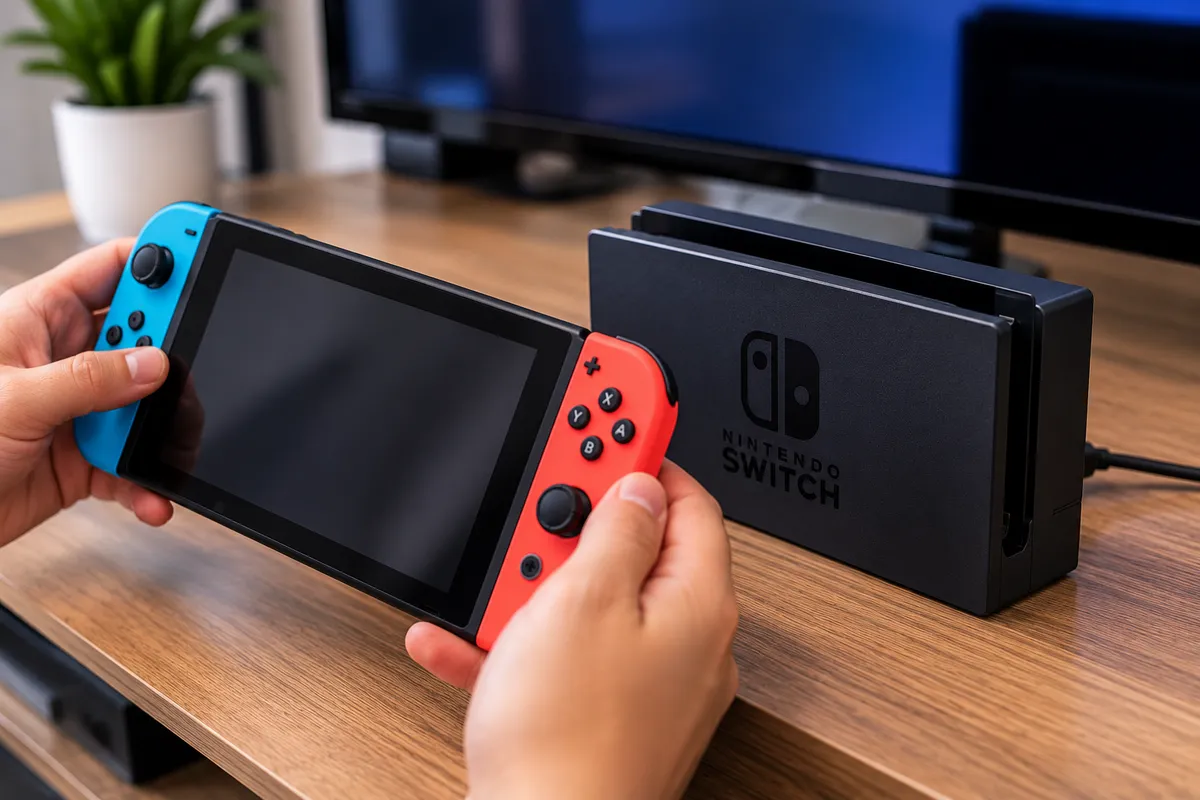
Docking requires more than basic battery charging. The Switch must receive power, communicate through the USB-C connection, and send video through the dock to the television or monitor.
Because the port contains multiple contacts, partial damage can allow the console to accept some power while preventing data or video output. A damaged dock, HDMI cable, television input, or internal video circuit can also cause a no-display condition.
This is why a console that charges normally but will not dock does not automatically need a battery.
Test the Dock and HDMI Setup Separately
If the console charges directly but the television shows no picture, reconnect the dock power adapter and HDMI cable and verify that the display is on the correct input. Test another known-good HDMI cable if one is available.
Also inspect the dock connector area for dirt or anything preventing the Switch from sitting properly. If another compatible Switch works in the same dock, the problem is more likely inside your console. If neither console works, the dock or display setup should be checked first.
Could the Battery Be the Problem?
A worn battery can contribute to charging trouble, especially if the console drains rapidly, shuts down unexpectedly, refuses to hold a charge, or only stays on when connected to power.
Battery swelling is more serious. If the housing begins separating, the console becomes unusually hot, or you notice an unusual smell, stop charging and using the device. Do not press the case back together.
Battery testing helps determine whether the battery is actually failing or whether the charging system is simply not delivering power to it.
Liquid Exposure Can Affect Charging and Docking
Liquid can damage the USB-C port, internal connectors, charging circuitry, and motherboard even when the Switch keeps working immediately after the spill.
Corrosion may develop over time, so charging problems can appear later. Other warning signs can include random shutdowns, unusual heat, or functions that become unreliable.
If liquid exposure occurred, repeatedly reconnecting the charger to test the console can sometimes worsen an electrical fault. Mention the exposure during diagnosis, even if it happened days or weeks earlier.
Internal Board Faults Can Look Like a Bad Charging Port
The USB-C port is only one part of the Switch power system. Internal power-management and charging components regulate incoming electricity and communicate with the battery and other hardware.
If one of these components fails, the console may stay dead, charge inconsistently, or fail to connect to the dock even when the port looks normal.
Replacing the USB-C port without confirming the fault can therefore leave the original problem unchanged. Proper testing should determine whether the failure is mechanical, battery-related, dock-related, or on the motherboard.
Can Software Cause the Problem?
Software can occasionally affect startup or docking behavior, but obvious physical symptoms should not be treated as software problems. If the console is otherwise stable, a complete restart is a reasonable low-risk step.
If the USB-C connector feels loose, the cable disconnects when moved, the console was dropped, or the issue started after liquid exposure, hardware inspection should take priority over repeated resets or updates.
What Can You Safely Check at Home?
Use a known-good compatible charger and wall outlet, inspect the USB-C port with a light, and test the dock with another HDMI cable or display input. Power the system off fully before reconnecting the dock if the console is still responsive.
Avoid forcing the plug, holding the cable sideways to maintain charging, or inserting metal tools into the port. Repeated pressure can worsen a damaged connector or stress its connection to the motherboard.
Stop testing if the console becomes unusually hot, smells abnormal, shows swelling, or has obvious liquid or port damage.
How Technicians Diagnose Nintendo Switch Charging Problems
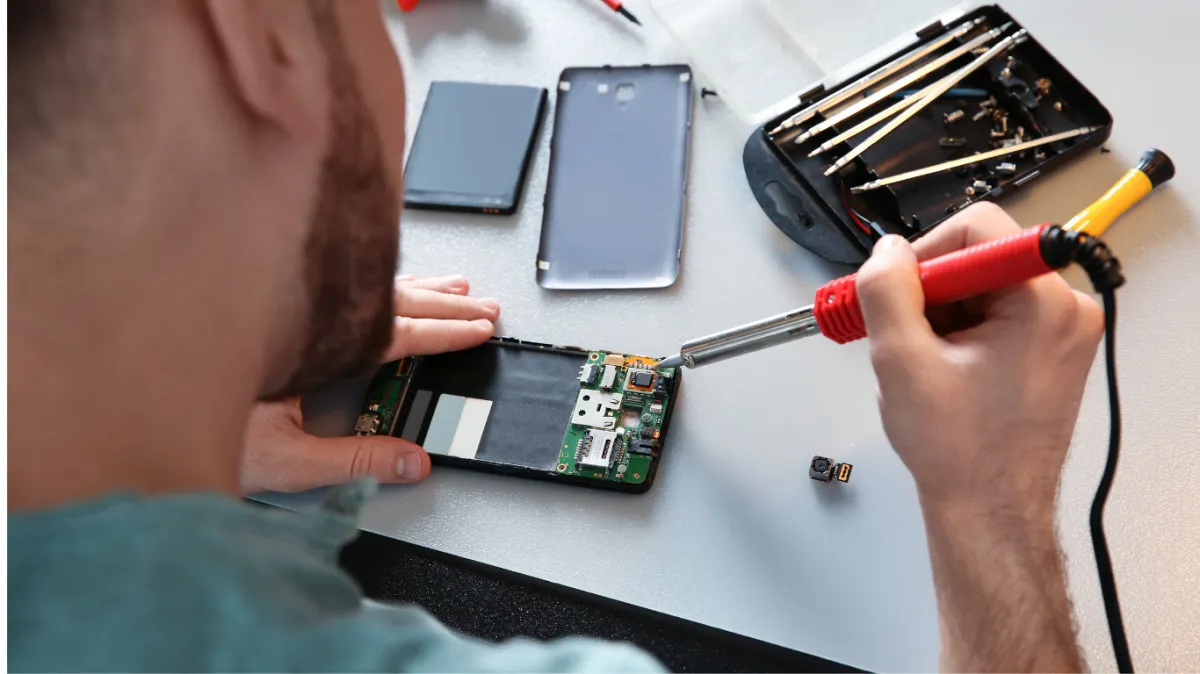
A good repair process isolates the failure instead of replacing parts based only on symptoms. A technician can test the AC adapter, inspect the USB-C port under magnification, evaluate the battery, and measure whether the console is receiving stable power.
Dock communication can also be tested to determine whether the fault lies in the console, dock, HDMI connection, or internal circuitry. If the port is damaged, replacement may be necessary. If the connector is intact, board-level testing may be needed.
This approach helps prevent unnecessary battery or charging-port replacement and gives a clearer picture of what the console actually needs.
Nintendo Switch Repair in Southgate, MI
A Nintendo Switch that will not charge or connect to the dock may have an accessory problem, damaged USB-C port, battery issue, liquid damage, or internal power or video fault. The same symptom can have several causes, which is why diagnosis matters.
Moe-Bile Repair provides game console repair in Southgate, MI and services Nintendo Switch systems along with other major consoles. Proper testing can determine whether the console needs port repair, battery work, dock troubleshooting, or deeper board diagnostics.
You can visit Moe-Bile Repair’s Southgate location or contact the repair team to have the Switch evaluated before intermittent charging or docking problems become more severe.
