




Why Does My Tablet Show It’s Charging but the Battery Won’t Go Up?
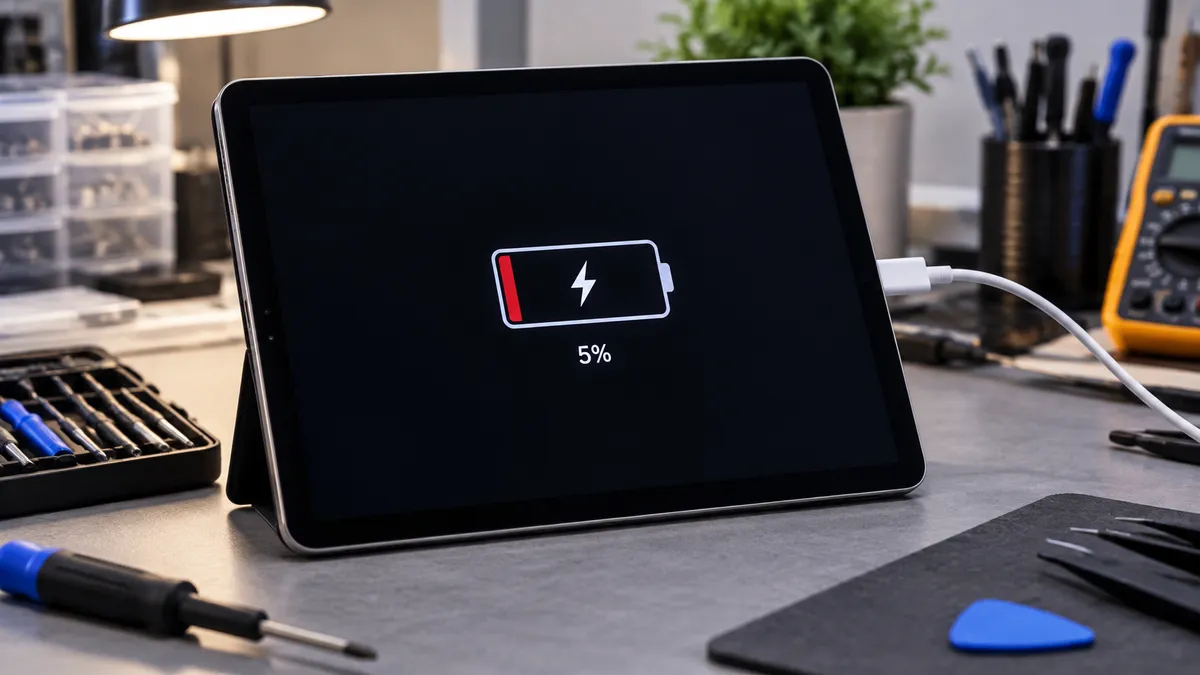
If your tablet shows the charging symbol but the battery percentage barely moves, stays frozen, or keeps dropping, the device is detecting a power source but may not be receiving enough usable power to recharge the battery.
The cause can be a weak cable or adapter, a dirty charging port, worn battery, software problem, overheating, liquid damage, or an internal charging-circuit fault.
For tablet owners in Southgate, MI, the safest approach is to rule out simple external causes first and then have the device tested if the battery still will not increase.
What Does It Mean When a Tablet Says It Is Charging?
The charging icon only means the tablet has detected incoming power. It does not guarantee that enough power is reaching the battery to raise its charge level.
Your tablet continues using electricity while it is on. The display, processor, Wi-Fi, apps, and background services all consume power. If the charger supplies less power than the tablet is using, the device may show that it is charging while the battery stays at the same percentage or slowly falls.
That is why a charging symbol should be treated as a clue, not proof that the battery is charging normally.
A Weak Cable or Adapter May Not Supply Enough Power
Start with the charging equipment.
A damaged cable can still trigger the charging icon even when its internal wires or connector are no longer carrying power reliably. An underpowered adapter may also provide electricity without supplying enough power for the tablet to recharge properly.
Test the tablet with a known-good compatible cable and adapter. If possible, change one item at a time so you can identify which accessory is causing the problem.
If the battery begins increasing normally with another charger, the tablet itself may not need repair.
A Dirty or Damaged Charging Port Can Limit Power
Charging ports gradually collect lint, dust, and debris. If material becomes compacted inside the port, the cable may no longer make full contact.
The tablet can still recognize the charger, but the connection may be too weak or unstable to deliver normal charging current.
A worn or damaged port can create the same symptom. You may notice a loose cable, charging that stops when the connector moves, or a tablet that only charges when the cable is held a certain way.
You can inspect the port with a light, but avoid inserting needles, paper clips, pins, or other metal objects. The contacts inside the port are small and easy to damage.
Moe-Bile Repair’s tablet repair service includes charge port repair and diagnostic testing for charging-related problems.
The Tablet May Be Using Power as Fast as It Receives It
Heavy use can make a working charger appear ineffective.
High screen brightness, gaming, video streaming, video calls, downloads, system updates, and background apps can increase power demand. If the tablet is already at a low battery level, it may gain charge very slowly while these tasks are running.
Try locking the screen and leaving the tablet connected to the correct charger for a while.
If the percentage begins rising once the device is idle, power consumption may have been contributing to the problem. If charging remains extremely slow during light use, another issue may be present.
Battery Deterioration Can Prevent Normal Charging
Rechargeable tablet batteries lose capacity as they age.
A worn battery may charge slowly, stop at certain percentages, drain quickly, become warm, or report inconsistent battery levels. In more advanced cases, the tablet may show that it is charging while the percentage barely changes.
Battery failure becomes more likely when the charging problem appears alongside rapid battery drain, unexpected shutdowns, sudden percentage changes, or a device that only stays powered on while connected to a charger.
Battery swelling is more serious. If the screen or back panel begins lifting away from the frame, stop pressing the device together and have it inspected.
Professional battery testing can determine whether replacement is actually necessary instead of assuming the battery is at fault based only on the charging icon.
Software or Temperature Can Affect Charging
Not every frozen battery percentage comes from failed hardware.
The operating system estimates battery level using information from the battery and charging system. A temporary software problem may cause the displayed percentage to update incorrectly. If the tablet is otherwise stable, restarting it once is a reasonable test.
Temperature can also affect charging. Tablets may reduce or temporarily pause battery charging when the device becomes unusually hot or cold.
If the tablet feels very hot, disconnect it and allow it to return to room temperature naturally. Do not place it in a refrigerator or freezer.
Repeated overheating during normal charging deserves further diagnosis because excessive heat may point to a deteriorating battery or internal electrical problem.
Moisture Can Interfere With the Charging System
Liquid exposure can cause charging trouble even if the tablet continues working.
Moisture or corrosion may affect the charging port, internal connectors, or motherboard. The tablet may recognize the charger while failing to deliver stable power to the battery.
Warning signs can include intermittent charging, unusual heat near the charging port, unexpected shutdowns, or problems that began after a spill or other liquid exposure.
If moisture is suspected, avoid repeatedly plugging the tablet in just to see whether it will charge. A technician can inspect the device for corrosion before deciding whether the port, battery, or another component requires repair.
The Charging Circuit May Be the Real Problem
The charger, port, and battery are only part of the tablet’s charging system.
Inside the device, power-management components regulate and direct electricity to the battery. If one of these circuits fails, the tablet may still display the charging symbol while little or no usable charge reaches the battery.
Internal charging faults become more likely when known-good charging accessories, a clean port, and a healthy battery do not resolve the problem.
This is why replacing the charging port or battery without testing can be misleading. Two tablets may display exactly the same symptom but require completely different repairs.
What Can You Safely Test at Home?
Start with a few low-risk checks:
Use a known-good compatible charging cable and power adapter.
Try another wall outlet.
Lock the screen and allow the tablet to charge without heavy use.
Restart the tablet once if it is otherwise operating normally.
Inspect the charging port visually without inserting metal tools.
Stop testing if you notice severe overheating, battery swelling, a chemical or burning smell, obvious liquid exposure, a badly damaged charging port, or repeated shutdowns.
Those symptoms call for professional inspection rather than continued charging attempts.
How Technicians Diagnose a Tablet That Will Not Gain Charge
A proper diagnosis focuses on finding where the charging process is failing rather than immediately replacing the battery.
A technician can test the tablet with known-good charging equipment, inspect the charging port under magnification, evaluate battery condition, measure charging behavior, and look for evidence of impact or liquid damage.
If the port and battery appear normal, further testing may focus on internal connectors and charging circuitry.
This step-by-step process helps prevent unnecessary part replacement.
One tablet may only need debris removed from the charging port or a different cable. Another tablet showing the same “charging but not increasing” symptom may require battery replacement, charging port repair, or more advanced board-level work.
Should You Replace the Battery Just Because It Won’t Charge?
Not automatically.
A battery that no longer holds or accepts a normal charge may need replacement, but the same symptom can be caused by the charger, port, temperature, software, or internal power circuitry.
Replacing the battery without confirming its condition can leave you with exactly the same charging problem afterward.
Diagnosis is particularly important if the tablet has been dropped, exposed to liquid, overheating, or previously repaired.
The goal should be to identify the failed component first and then repair what is actually causing the problem.
Tablet Charging Repair in Southgate, MI
If your tablet says it is charging but the battery percentage will not go up, the device is detecting power but something is preventing normal charging.
Possible causes include the cable, power adapter, charging port, battery, software, excessive power use, temperature, moisture damage, or internal power-management hardware.
Moe-Bile Repair provides tablet repair in Southgate, MI for major tablet brands, including charging port problems, battery replacement, water damage, and device diagnostics.
If testing another compatible charger does not solve the problem, having the tablet properly diagnosed can determine whether the failure is in the accessory, charging port, battery, or internal charging system.
You can visit Moe-Bile Repair’s Southgate location or contact Moe-Bile Repair to have the tablet evaluated before the charging problem becomes more severe.
A tablet that recognizes a charger but does not gain battery percentage is giving you useful information: power is being detected, but the charging process is not completing normally. Finding out where that process is failing is the most reliable way to choose the right repair.
